Thursday, October 21, 2010

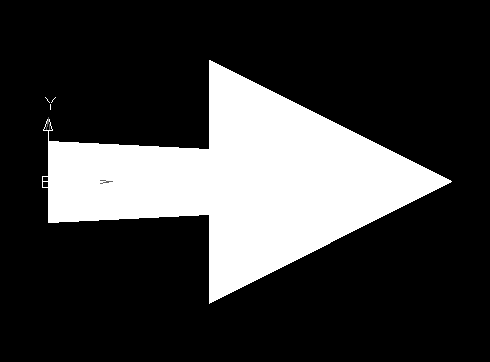
Simple Arrow


Use the following AUTOCAD command:
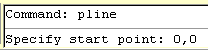
1.pline

Method::

1.Type pline command to the command entry.


RESULT:

3D chair


Use the following AUTOCAD command:
1.circle
2.pedit
3.extrude

Method:
1.Use the command circle, trim and pedit.


2.Switch the current view into SE isometric.


3. Use extrude command with the extrusion value of 500mm.


RESULT

Wednesday, October 20, 2010

plain 2D automobile rim


Use the Following AUTOCAD command:
1.circle
2.extrude
3.array
4.spline

Method:

1.Set the current view into front view, then create a circle with the diameter value of 750mm..


2.Create a design using command Spline


3.To complete the whole figure use the Array command.


RESULT

2D chair


Use the following AUTOCAD command:
1.line
2.fillet

Method:

1. Use line command to create a structural plan of a chair and set the unit into a millimeter.


2. Use fillet command to build a clean round corner.

RESULT

Convert 2D automobile rim into 3D

Use the following AUTOCAD command:
1. extrude
2. subtract

Method:

1. Switch the current view into SW isometric.


2. Command Extrude then enter 255mm for the extrusion height value.


3. Type the shade command into the command entry then see the simple realistic result.


4. Use the command subtract to eliminate the unwanted solid object.

Tuesday, October 19, 2010

Linear pipe


Use the following AUTOCAD command:
1. circle
2. offset
3. extrude
4. line
5. subtract

Method:

1.Draw a circle with the radius value of 50mm whereas the thickness value is about 5mm offset.


2.Switch the current view into SW isometric then create a straight line about 400mm directly to the center point of a circle.


3.To begin the extrusion of an object enter the command extrude then select the two circle followed by typing the word Path. Currently select the line or what we called the extrusion path then press the enter key to see the result.


4.Use shade command to hide from view of isoline.


5.Take away the unnecessary objects. Use the command subtract:


6. then press ENTER.

7. select solids and regions to subtract.


8. Finally press the key ENTER


RESULT

Monday, October 18, 2010

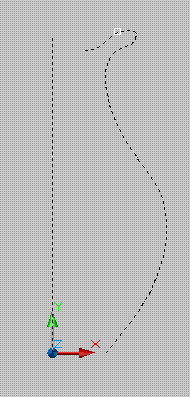
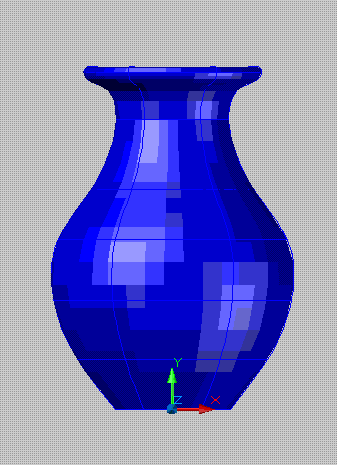
3D flower base


Use the following AUTOCAD command:

1.line
2.spline
3.revolve

Method:

1.Change the current viewport into “front view”.


2.Begin command “line” with the height value of 30cm, after that create a plain sketch using command “spline” to provide a simple design needed to form a solid object.


3. command “revolve” to create a 3d solid object.